# Getting Started
Web3 Live Streaming Without Borders
## 🤔 What is Xeenon?
* Xeenon is a Web3 streaming platform built for creators and their communities on top of the Arbitrum and Livepeer Networks.
## 😬 How hard is it to withdraw my earnings?
{% hint style="success" %}
We make the withdrawal process easy, there is no minimum withdrawal threshold, and **creators on Xeenon can start earning immediately.**
{% endhint %}
{% content-ref url="/pages/Bn3CbmZKEwiXrgVjryHw" %}
[Deposits Withdrawals and Transfers](/managing-funds/deposits-withdrawals-and-transfers)
{% endcontent-ref %}
## 💰 I heard you pay creators in ETH just for streaming on the platform... is it true?
* YES! By running an orchestrator on the Livepeer Protocol for video transcoding, we are able to kick back a percentage of the revenue generated to creators for making use of the network!
* The percentage breakdown as of now is shown in the graphic below. The **Fee Cut** represents the ETH that is paid to the Xeenon orchestrator for completing transcoding jobs on the Livepeer network, while the **Reward Cut** represents inflationary $LPT rewards.
## 🧐 Why build a live streaming platform using blockchain technology?
* Building payment rails on top of the Arbitrum blockchain allows us to keep fees low while offering superior security, transparency, and instant payments to creators.
* By leveraging the Livepeer network, we can ensure the best-in-class streaming experiences using their decentralized video transcoding network.
## 🦊 Do I need a crypto wallet to get started?
* Nope! We've recently integrated [Privy.io](https://privy.io), which allows anyone to create and start earning on Xeenon without needing a self custodial wallet (you can still connect with traditional wallet providers like Metamask if you wish)! Simply head to [Xeenon.xyz](https://xeenon.xyz) and start creating!
## Jump to Relevant Creator Pages
{% content-ref url="/pages/rymfJdiK1JfpKpMCkB2Z" %}
[Uploading Videos](/uploading-videos)
{% endcontent-ref %}
{% content-ref url="/pages/olNRG1L8kSOwL5CBeWEK" %}
[Streaming](/streaming)
{% endcontent-ref %}
# Profile Settings
## How do I set up my profile?
1. Head to [Xeenon.xyz](https://xeenon.xyz) and click the **Connect** button icon in the top right corner.
2. Choose from the list of options provided. If you choose to use a [**Privy Embedded Wallet**](https://www.privy.io/features/wallets)**,** you will need to create a *pin* so that the wallet can be used on other browsers*,* please be sure to keep it safe.
3\. Once you have a connected account, hover over the profile image in the top right corner and click on the **Settings** button.
4\. Fill out any (or none) of the fields you’d like. (We don't care! It's **your** profile!)
5\. Add links to your social media profiles by clicking the “Socials” icon on the settings page.
* If you have a [Lens](https://www.lens.xyz/) handle, you can connect it here as well.
6\. Save your changes.
7\. Click the profile icon in the top right drop-down menu to view them!
# Streaming
## General set up
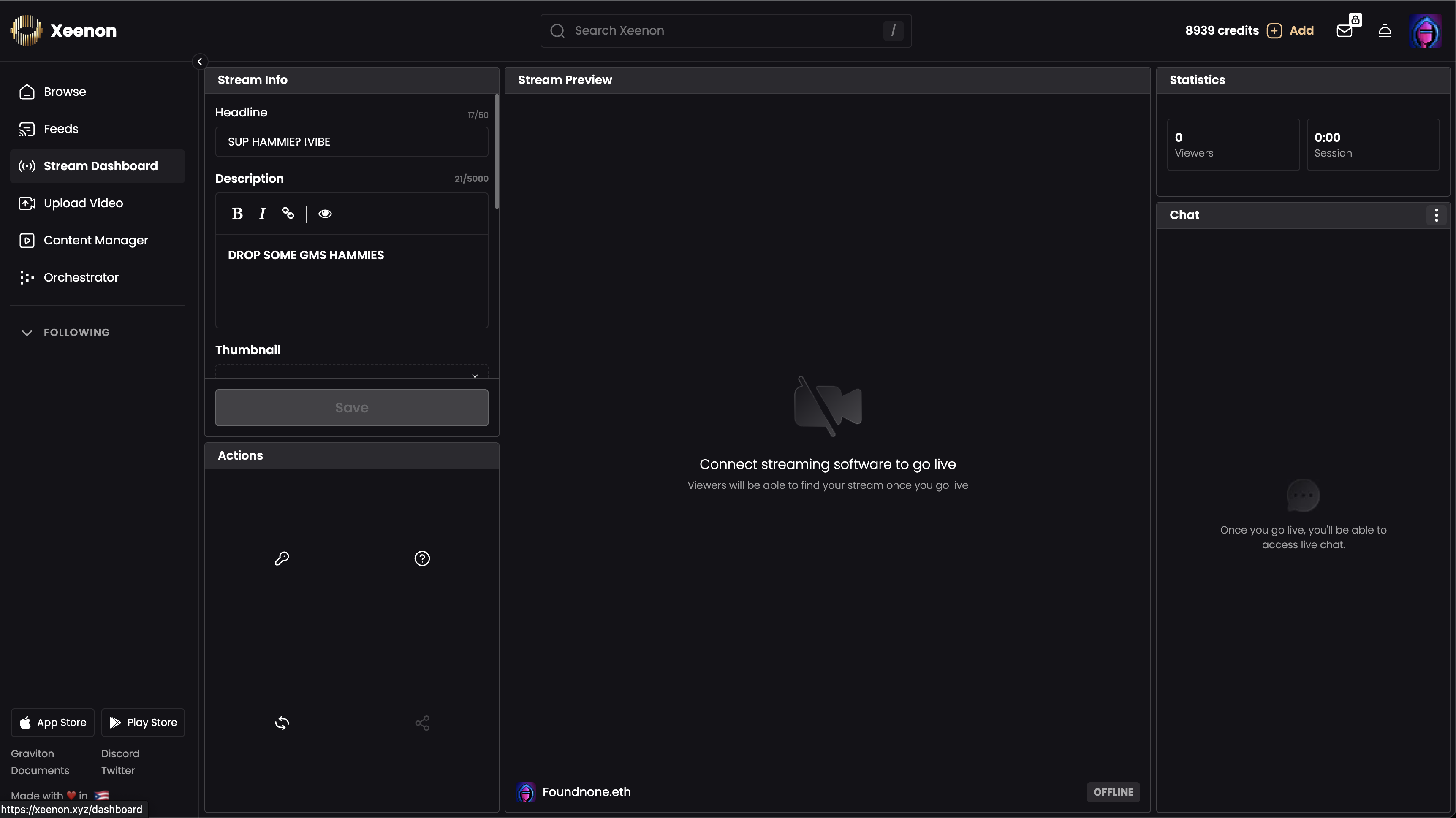
1. Click the **Dashboard** button in the left sidebar
2. Fill out the necessary fields
* You are only required to define a stream title and set the stream cost, but we recommend filling out all fields for the best discovery on the platform.
* Uploading a quality stream thumbnail is a great way to capture potential viewers' attention while browsing the application.
* Credits are pinned to a 1DAI: 100 Credits ratio, so the default of 5 credits per minute amounts to .05 DAI per minute per viewer
* You will earn credits on Xeenon for every minute that a viewer is watching, depending on the credits per minute rate that you have set for a stream
* Credit payments are on chain and happen as soon as any viewer stops watching your stream
## Reward your community with NFT holder discounts
If you already have a pre-existing web3 community, Xeenon has the tools to drive even more value back to your NFT holders.
* Add special pricing or grant free access for holders of any Mainnet Ethereum ERC721 / ERC1155 tokens
## Streaming is Free and Secure
* You can stream whatever you'd like!
* Music performances
* Gaming
* Podcasts & Tutorials
* +++
* We allow you to use your preferred streaming studio
* Fully customize and optimize your stream before and during a broadcast
* We recommend using any [Streamlabs Studio](https://streamlabs.com/) or the [Open Broadcast Software](https://obsproject.com/)
* You can even broadcast your mobile gaming using [Streamlabs Mobile](https://streamlabs.com/mobile-app)!
# Studio Set Up
First, make sure you have your preferred streaming studio application installed and open on your device. We recommend using [OBS](https://obsproject.com/) or any of [Streamlab's Desktop or Mobile Applications](https://streamlabs.com/).
1. On Xeenon's web app, make sure all of the desired stream fields are filled out
* All of your streams information can be changed while the stream is live (except for the streams cost per minute)
2. In the bottom left of your streaming dashboard in the **Actions** section, you will see a **Stream Key** icon. Click it so that you can copy your stream key and URL.
{% hint style="danger" %}
Never share your stream key with anyone, not even your grandma.
{% endhint %}
{% hint style="warning" %}
**Xeenon gives you the option to use a reusable stream key like traditional platforms, or generate a one time use key for an additional layer of security.**
If you opt in to using a one time use key, once the key is used, it is no longer valid. It's still best practice to keep the one time use keys a secret, but you will have peace of mind using Xeenon, knowing that your content and audience are safe.
{% endhint %}
## Studio set up
{% tabs %}
{% tab title="Open Broadcast Software (OBS)" %}
Navigate to "stream settings."
* In OBS, this is accessible by clicking "Settings" in the bottom right menu.
* Then click the "Stream" tab on the pop-up modal.
* Choose the "Custom Service" option.
* Fill out the fields with the information provided by Xeenon
{% hint style="danger" %}
Never share your stream key with anyone.
{% endhint %}
* Click "Start Streaming" in OBS
* Shortly after, check the Streaming Dashboard on Xeenon to ensure that you are
* You should be able to see a stream preview on the dashboard within a minute of starting the broadcast.
* When you're finished streaming, click the "Stop Streaming" button in OBS
* You cannot directly stop a Studio stream from the Xeenon website
* You will see the icon when you have successfully ended your stream
{% hint style="info" %}
For more technical information on using OBS, visit the [OBS Documentation Website](https://obsproject.com/docs/)
{% endhint %}
{% endtab %}
{% tab title="Streamlabs" %}
Navigate to "stream settings."
* In Streamlabs, this is accessible by clicking the "Settings" ⚙️ icon in the bottom left corner of the application.
* Then click the "Stream" tab on the pop-up modal
* Choose the "Custom Streaming Server" option
* Fill out the fields with the information provided by Xeenon
{% hint style="danger" %}
Never share your stream key with anyone.
{% endhint %}
* Close out the settings modal, and click when you are ready
* Shortly after, the Streaming Dashboard on Xeenon should display that you are
* When you're finished streaming, click the button in Streamlabs
* You cannot directly stop a Studio stream from the Xeenon website
* You will see the icon on Xeenon when you have successfully ended your stream
{% hint style="info" %}
For more technical information on using Streamlabs, visit the [Streamlabs Documentation website.](https://streamlabs.com/content-hub/post/getting-started-with-streamlabs-desktop)
{% endhint %}
{% endtab %}
{% tab title="Mobile Studio" %}
If you'd like to stream from mobile using a mobile Studio, first download the [Streamlabs Mobile](https://streamlabs.com/mobile-app) application.
* Generate a new stream key via the Xeenon Studio Broadcast page (shown above).
* Navigate to Account Settings, then click the "Custom RTMP Server" options.
* Then, enter the server URL and stream key provided by the Xeenon website
* You can use this option to stream mobile games on the go!
{% endtab %}
{% endtabs %}
# Recommended Output Settings
*Live streaming requires careful planning and execution to ensure your audience receives a smooth and enjoyable viewing experience. This document provides a set of best practices to help you achieve optimal live streaming performance. The main focus areas include bitrate, encoder settings, and bandwidth availability.*
*We are using OBS in these recommendations, but they should apply regardless of the streaming studio of your choice.*
## Navigate to Settings -> Output in OBS
# Bitrate
{% hint style="success" %}
Xeenon supports up to 8000kbps bitrate
{% endhint %}
* Bitrate is the number of bits that you're able to process in a given unit of time. It is measured in kilobits per second (Kbps). A higher bitrate allows for a better quality stream, but also requires more bandwidth.
* *Low Quality (480p):* For a standard definition stream, a bitrate range of 800 Kbps to 1.2 Mbps is typically sufficient.
* *Medium Quality (720p):* For high-definition, the bitrate should ideally be between 1.5 to 3 Mbps.
* *High Quality (1080p):* For full HD, aim for a bitrate in the range of 3.5 Mbps to 5 Mbps.
* *Ultra-High Quality (4K):* 4K support is experimental and will require a bitrate of up to 8 Mbps.
* Remember, the bitrate you choose should depend on your bandwidth availability. Always set your bitrate as a factor of not only the resolution but also of your internet upload speed.
* A good rule of thumb is to not exceed a bitrate that is 25% of your max internet upload speed. This will protect against any temporary intermittence and keep your stream as smooth as possible for the audience.
* For example, if your max upload speed is 20 mbps, it is best to not exceed 5000kbps (5mbps) bitrate.
* *A wired connection is recommended, but not necessary when live streaming. Sticking to the recommendation above should allow you to live stream via WiFi, unless your upload speeds are inconsistent.*
# Encoder Settings
Encoder settings play a vital role in the quality of your live stream. Different encoders offer varying levels of customization. Here are the main settings to focus on:
* *Encoder:* This is the software or hardware creating your video stream. Depending on whether you are on a P.C. or Mac machine, your encoder options will vary. The most common ones include H.264 (AVC or NVENC) and H.265 (HEVC) (Newer Mac machines use the Software x264 encoder by default but it is recommended to switch this to the hardware **Apple VT H264 Encoder**). H.264 is the most compatible codec today and provides good video quality. H.265 and VP9 are newer, offer better compression, and are suitable for 4K streaming, but may not be supported on all devices.
{% hint style="danger" %}
Software encoders like x264 are known to cause intermittent encoding errors, if possible use a hardware encoder for the best results.
{% endhint %}
* *Frame Rate:* A frame rate of 24-30 FPS (frames per second) is suitable for most live streams. For high-motion content like sports or gaming, consider using 60 FPS.
* This can be accessed in the **Video** section of OBS settings.
* *Keyframe Interval:* Keyframes, or I-frames, are the most comprehensive type of frame in a video. Set the keyframe interval to 2 seconds for optimal streaming.
* You may not see this option in settings depending on your OBS version
* *Preset:* The preset affects how the codec encodes the video. Using a slower encoding speed will improve the output quality, but depending on your machine can cause a slight increase in the time that it takes to actually deliver the video segments to the RTMP port, which will increase stream latency.
* Somewhere in the middle of slowest and fastest is usually best for a balance between latency and quality.
# Bandwidth Availability
Bandwidth availability is critical for live streaming. Here are some recommendations:
* *Stable Connection:* For uninterrupted streaming, ensure that you have a stable internet connection. Using a wired connection instead of wireless can provide more stability.
* *Overhead Bandwidth:* As a rule of thumb, your upload speed should be approximately four times your stream's bitrate. This allows for sufficient overhead to handle other tasks.
* *Network Congestion:* Be aware of other devices or users on your network who may be consuming significant bandwidth, as this can interfere with your live stream.
* *Testing:* Conduct multiple bandwidth tests at different times to gauge the consistency of your internet connection.
In conclusion, successful live streaming requires careful planning, preparation, and testing. Understanding and optimally setting up your bitrate, encoder settings, and bandwidth availability can significantly enhance your live streaming experience and ensure your viewers enjoy a high-quality, uninterrupted stream.
For personalized advice, consider running a test stream and tweaking your settings to ensure they are optimal for your specific situation and audience.
# Xeenon Chat Widget
Add the Xeenon Chat Widget to your stream
{% hint style="info" %}
**Currently we offer creators a chat widget that can be used as a Browser source in your streaming studio, or in it's own browser tab to stay updated with your chat. To accomplish this, follow the steps below.**
We have plans to expand on this in the near future to provide more relevant data to add to your stream as overlays.
{% endhint %}
First, head to your [streaming dashboard](https://xeenon.xyz/dashboard), (make sure you are signed in to your account).
* In the "Chat" section of the dashboard, click the 3 dots in the top right corner.
* Copy your chat URL
* Open up your streaming studio (in this example I am using OBS)
* In the **Sources** section inside of OBS, add a **Browser** source and paste in the chat URL
* You should see a transparent element on your screen, this will fill with chat messages as they arrive!
{% hint style="info" %}
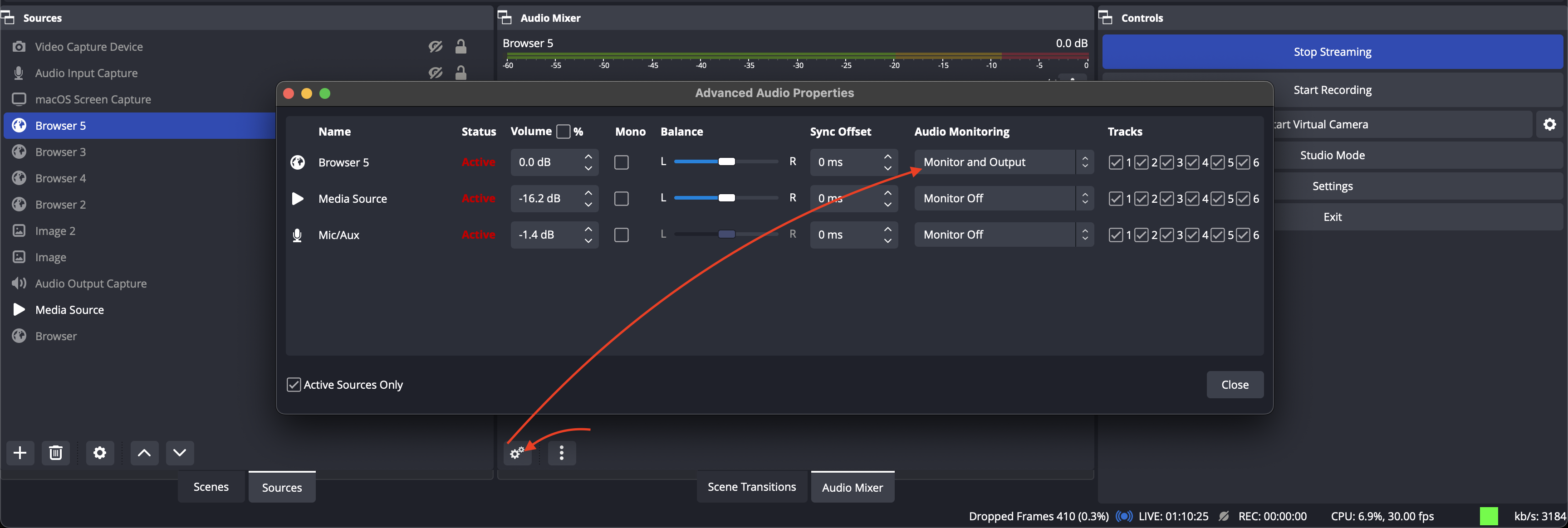
**Enable sound notifications for messages, tips, follows, and subscriptions inside of your streaming studio (OBS is pictured but it will work for Streamlabs as well)**
{% endhint %}
* Enable "Control Audio" in the browser source properties
* Make sure that "monitor" is selected for the browser source in the advanced audio properties if you want to hear the output from OBS
* Use "monitor and output" if you also want your viewers to hear the alerts
# Uploading Videos
### Xeenon makes it easy to upload videos to your fans.
To get started, click the **Upload Video** button in the sidebar.
**On the Upload dashboard, fill out the Video information as you wish and upload your video by clicking the right side of the page (or you can drag and drop the file into the upload section).**
{% hint style="warning" %}
You can charge a flat rate fee in credits by changing the Video price value and even add an NFT discount of your choosing.
{% endhint %}
#### Once you're happy with the Video info and are ready to publish it, click the **Publish** button at the bottom left side of the Upload Dashboard to submit the video for processing.
{% hint style="success" %}
**NICE!** You're video is now processing on the decentralized Livepeer transcoding network, you can check on it's status in the [Content Manager](/content-manager).
{% endhint %}
# Content Manager
### The Content Manager is a hub for managing created and purchased content.
{% hint style="info" %}
To access the content manager, you must be connected and signed in to your account, you will need to sign a wallet signature to prove your ownership of the wallet. Don't worry, this signature does not grant Xeenon any access to your funds, and doesn't require a gas fee.
{% endhint %}
## Past Streams
* instantly publish previous broadcasts
* download an .MP4 of your past stream
* modify the broadcast information
* add a price
* hide the broadcast
* copy the URL
## Uploadeds
* modify the videos information
* hide the video
* copy the URL
## View Purchased and Liked Content
# Managing Funds
{% hint style="success" %}
**Xeenon is built on Arbitrum Layer 2**
This allows Xeenon to take full advantage of the security of Ethereum Mainnet while allowing creators and fans to thrive together with the low fees from Optimistic Rollup technology.
{% endhint %}
# Deposits Withdrawals and Transfers
Step by Step Guide to Deposit, Withdraw, and Transfer Funds on Xeenon
{% hint style="success" %}
Xeenon's payment processor is on the [Arbitrum](https://arbitrum.io/) [blockchain](https://arbitrum.io/)**,** make sure any funds you send **To** or **From** Xeenon are on the **Arbitrum Network**.
In this guide, we will be using [**Coinbase**](https://coinbase.com) to demonstrate how a Xeenon user can bring funds into and out of the Xeenon credits. However, you are free to use any exchange you are comfortable with using.
{% endhint %}
## How to Deposit Funds
1. **Acquire Ethereum (ETH) and DAI:** First, you need to have a small amount of ETH (around .00007 per transaction) to pay for validator fees on the Abritrum network. If you don't already have ETH in the wallet, the most simple way of getting some is to purchase ETH on Coinbase, along with your desired deposit amount in DAI via your Coinbase account.
1. **Send ETH and DAI to your Xeenon Wallet:** To send ETH or DAI from Coinbase to your Xeenon wallet, first navigate to your Coinbase account. Click on "Send", choose ETH or DAI, then enter the amount you want to send, and input your Xeenon wallet address. Be sure to select the Arbitrum network before confirming the transaction.
{% hint style="info" %}
You can access your Xeenon wallet address through the platform by hovering over your profile in the top right and copying the address underneath your display name.
{% endhint %}
3. **Deposit DAI for Xeenon Credits:** Once you have DAI in your Xeenon wallet, go to the 'Deposit' tab under the [Manage Funds](https://xeenon.xyz/manage-funds) page on Xeenon. Input the amount of DAI you want to convert into credits, and confirm the transaction. Your balance will be updated with the corresponding number of credits.
{% hint style="info" %}
Credits on Xeenon are always pegged to DAI at a ratio of 100(Credits)=1(DAI).
{% endhint %}
## How to Withdraw Funds
{% hint style="success" %}
Creators can withdraw their earnings instantly on Xeenon
{% endhint %}
1. **Unfreeze your account:** First, you need to request our backend to unfreeze your withdraws. This is important to check for any pending transactions and if necessary, initiate KYC verification. KYC is only required if you've earned more than 1 million credits or $10,000 on the platform.
2. **Withdraw your funds:** Once your account is unfrozen, you can withdraw your funds. The withdrawal transaction process costs around 8-12 cents on the Arbitrum blockchain, equivalent to about 0.00005 ETH.
{% hint style="info" %}
Remember that if you stream more than a few hours per week on Xeenon, you should earn enough ETH every two weeks to cover the withdrawal cost. We pay out creators in ETH every two weeks from our Livepeer Orchestrator that facilitates video transcoding.
{% endhint %}
## How to Transfer DAI to Coinbase
{% hint style="success" %}
After you complete the withdraw process, you will notice that the Manage Funds page will display some amount of DAI, this next section is a guide on moving DAI from your wallet (Xeenon) -> your bank account.
{% endhint %}
1. **Navigate to the 'Transfer' Tab:** Go to the 'Transfer' tab under the 'Manage Funds' page on Xeenon.
2. **Enter the Coinbase Wallet Address and Amount:** Input your Coinbase wallet address and the amount of DAI you want to transfer. To find your Coinbase receive address, click on "Receive" while signed in to Coinbase and be sure to select **DAI** on the **Arbitrum** network.
3. **Confirm the Transfer:** Confirm the transaction in your wallet on Xeenon. The DAI will then be transferred to your Coinbase account.
4. **Convert DAI to USD on Coinbase:** Once the DAI is in your Coinbase account, you can convert it to USD or any other supported currency.
{% hint style="danger" %}
Transactions To and From Xeenon should always be done on the Arbitrum network. Sending DAI or ETH to a Centralized Exchange (like Coinbase) on the wrong network can possibly lead to a loss of funds. If you need further assistance or have any issues with the deposit or withdrawal process, please don't hesitate to contact us in the #support channel of the [Xeenon discord](https://xeenon.xyz/discord).
{% endhint %}
# Advanced
Bridging and Swapping to the Arbitrum Network
{% hint style="info" %}
Only for users who are relatively comfortable with making on-chain transactions and bridging between blockchains already. If you are new to crypto, see the previous page.
{% endhint %}
# Arbitrum Bridge
## Bridging mainnet tokens to Arbitrum
You can bridge funds from Mainnet to Arbitrum, and Hop Protocol makes it easy!
{% hint style="info" %}
You'll need a bit of ETH on the Arbitrum Network to pay small transaction fees.
{% endhint %}
1. Visit [Hop Protocol](https://app.hop.exchange/#/send?token=ETH\&destNetwork=arbitrum\&sourceNetwork=ethereum)
2. Connect your wallet
3. Choose the amount of ETH (or other tokens) you'd like to bridge
* To purchase credits for viewing live streams on Xeenon, you will need some DAI
4. Click "Send" and approve
* You'll need to sign a gas transaction in your wallet.
{% hint style="success" %}
Now that you have ETH on Arbitrum, you can use protocols on the network!
{% endhint %}
# Xeenon uses DAI
100 Credits = 1 DAI
{% hint style="info" %}
**You'll need DAI to purchase credits on Xeenon.**
Credits are used to view streams, purchase exclusive content, and, most importantly support your favorite creators on the platform.
{% endhint %}
## Swapping ETH for DAI on Arbitrum
{% hint style="info" %}
**There are many ways to get DAI on Arbitrum.**
We recommend first bridging ETH to Arbitrum and then swapping ETH for DAI using [1inch](https://app.1inch.io/#/42161/unified/swap/ETH/DAI). This allows you to take advantage of the low transaction costs that Arbitrum offers, as swapping on mainnet can cost you up to 10-20x in gas fees.
{% endhint %}
1. Once you've got some ETH on the Arbitrum Network, head over to [1inch](https://app.1inch.io/#/42161/unified/swap/ETH/DAI) or [Uniswap](https://app.uniswap.org/)
2. If you use the above 1inch link, the ETH - DAI pair should already be loaded up for you
3. Connect your wallet to the application
4. Select the amount of ETH you'd like to swap to DAI and click "Swap."
5. Click "Confirm swap" and sign the transaction
{% hint style="success" %}
Now that you have DAI, you can buy credits on Xeenon and start supporting your favorite creators!
{% endhint %}
# Viewing Live Streams
## Viewing exclusive live content on Xeenon is simple and secure.
{% hint style="info" %}
For some live streams, your account will need to have credits to view the live content.
{% endhint %}
**T**o get started, click the  icon in the left sidebar and find a stream you're interested in.
* The price of the stream in credits per minute is shown in green under the stream cover image.
After you find a stream to view and click into it, you'll need to approve the credits per minute allowance by clicking the button and signing the wallet signatures.
{% hint style="warning" %}
**You approved transferring a specific amount of credits per minute to the creator.**
The amount of time you have to watch is determined by your credit balance and the price per minute set by the creator.
{% endhint %}
* When you are finished viewing the live content, leave the page, and your viewing session will be terminated.
# Mobile App
Xeenon offers a Mobile Broadcasting Application for both iOS and Android devices.
## Set up the Xeenon Broadcaster app
1. You can download the Xeenon Broadcaster Application on:
* [iOS](https://apps.apple.com/us/app/xeenon/id1620540656)
* [Google Play](https://play.google.com/store/apps/details?id=xyz.xeenon.broadcaster)
2. For now, the mobile application only strictly provides the ability to broadcast from your device. Viewing streams has yet to be an option during Beta testing.
3. To connect, follow the steps below:
1. Visit [Xeenon](https://testnet.xeenon.xyz/).
2. Sign in with your web3 wallet provider.
3. Click the profile icon in the top right.
4. Click on “Connect device.”
5. Sign the gas-fee wallet approval messages - this keeps your account secure.
6. Open the mobile application.
7. Scan the QR code from your mobile device.
8. Now that you’re connected, you can go live anywhere, anytime, straight from your mobile device!
{% hint style="info" %}
You can connect multiple devices to one account and manage them from the desktop application.
{% endhint %}
### How can I configure the mobile stream price?
* In the Settings -> Device section, you can set the default price for your mobile streams.
### What is my Device ID?
* The Device ID displayed on the mobile application is a secondary wallet address we generate for you.
* This wallet only has permission to stream to your Xeenon account and can not access any of the assets inside your wallet address.
* Xeenon’s backend services only interpret these permissions.
* Connecting your mobile device does not grant any on-chain permissions.
* This helps you keep your funds safe, as it is against best practices to connect your mobile device to your wallet directly.
### Can I revoke these permissions?
* You can revoke the generated wallet addresses streaming permissions by clicking “Disconnect” inside the mobile application at any point in time.
* The next time you connect the mobile application to your account, we will generate a new “Device ID” for you.
###
# Mobile Streaming
## Go live from anywhere, at any time!
### Stream set up
1. Once the Xeenon Broadcaster mobile application is connected, tap "Next."
2. Fill out the necessary fields (these will be displayed on Xeenon's web application to your viewers), and tap "Next."
3. Add a banner image, this can be a photo on your device, or you make a new photograph directly inside the application.
4. Add relevant tags (these help discovery on the platform).
5. Tap "Next."
6. Verify your stream information and tap "Continue to Camera."
### Start broadcasting
1. Before you start, plan out your stream and orient the Xeenon Broadcaster camera using the icon.
\- You can not change the orientation midstream. This is to provide a quality viewing experience to your audience.
2. Using the icon, you can flip to the front or back camera at any time during your broadcast.
3. Once you're ready to go live, click "Start streaming."
4. You can mute your device's audio input anytime during your stream by clicking the icon and unmute at any time by clicking it again.
# Technical Breakdown
Tools behind Xeenon
Videos are **transcoded** on the Livepeer network using our infrastructure, which includes a Livepeer Orchestrator, a Livepeer Broadcaster, and at least one Livepeer Transcoder. Graviton Inc runs the Livepeer Orchestrator and Broadcaster and ensures that enough ETH is available to facilitate the streaming.
{% hint style="info" %}
*Transcoding* *is the process of converting an audio or video file from one encoding format to another to increase the number of compatible target devices on a media file that can be played.*
{% endhint %}
### [Livepeer](https://livepeer.org/)
Livepeer is a fully decentralized streaming network protocol that is highly scalable and has incentivized crypto tokens. Using Livepeer, Graviton can have an infrastructure solution that is cheaper than traditional centralized live video solutions and cloud service providers. This crypto token-powered protocol incentivizes users (nodes) to contribute computation and bandwidth towards transcoding and delivering live streaming video to the full range of devices according to all the latest standards and formats. Users running these nodes are incentivized via fees paid by the broadcaster in ETH and the opportunity to build a reputation through the protocol token to earn the right to perform more work in the future.
### Orchestrators
Orchestrators coordinate work on the network. They earn Livepeer tokens (LPT) rewards by **staking** their own LPT and attracting the stake of delegators by sharing earnings and making ETH fees by providing high-quality transcoding services to broadcasters. The quality of the transcoding service is influenced by a combination of factors, including economic security (the stake of the orchestrator and its delegators which can be slashed if the work is performed incorrectly), geographic coverage, and transcoding capacity (affected by bandwidth and computational capacity). Since a broadcaster selects orchestrators to send work to based on these factors, an orchestrator's earning potential depends on its ability to perform well in each area.******
{% hint style="info" %}
[*Staking*](https://www.coinbase.com/learn/crypto-basics/what-is-staking) *is a way to use your crypto holdings or coins to earn additional rewards. It can be helpful to think of it as OrchestrOrchestrator savings or earning dividends on stock holdings.*
{% endhint %}
### Transcoders
Transcoders perform work on the network. They provide computational capacity to orchestrators with hardware resources. An orchestrator can also be a transcoder, but it can outsource transcoding to one or many separate transcoders, similar to how Proof of Work (PoW) mining pools outsource PoW **hashing** to one or many separate miners. Orchestrators that outsource transcoding to one or many separate transcoders are commonlyOrchestrator as transcoding pools.**
{% hint style="info" %}
[*Hashing*](https://www.educative.io/edpresso/what-is-hashing) *is the process of converting a given key into another value. A hash function is used to generate the new value according to a mathematical algorithm. The result of a hash function is known as, simply, a hash.*
{% endhint %}
### Transcoding pools
The split orchestrator and transcoder architecture enables the creation of transcoding pools. In the Livepeer network, pool operators are orchestrator operators, and the pool participants are transcoders. Transcoding pools are not a part of the core protocol, so the details around how to work in a pool are tracked and how transcoders in a pool are compensated depends on the pool implementation.
### Rewards and fees
An orchestrator earns rewards based on its total stake (includes its own self-delegated stake and the stake of its delegators), which accrue daily. These rewards are analogous to the block reward in PoW blockchains such as Bitcoin. An orchestrator earns fees based on the video transcoding service it provides to broadcasters. The more transcoding an orchestrator performs, the more fees it will earn. These fees are analogous to the transaction fees in PoW blockchains such as Bitcoin.
### Graviton Orchestrator
The [Xeenon Orchestrator](https://explorer.livepeer.org/accounts/0x76a65814b6e0fa5a3598ef6503fa1d990ec0e61a/orchestrating) is available for other Delegators to stake their LPT tokens on and earn passive income - i.e., Inflationary rewards for staking and rewards for transcoding. The Xeenon Orchestrator claims LPT rewards from the staking of LPT, both our own and any additional Delegators, each round (\~18 hours), taking only a tiny percent of the rewards that originate from external Delegators. Graviton will ensure that enough ETH is available on the Orchestrator to claim these rewards and that enough Transcoding power is available on the Orchestrator to handle the traffic from Xeenon. Initially, we have one powerful transcoder connected. Still, in the long run, we will get onboard additional transcoders.
# Contract Audit
Thanks to our friends over at [Perfect Abstractions](https://www.perfectabstractions.com/), our smart contracts are audited and secure.
{% file src="/files/McmXpHpmqE0tKfXyuMcm" %}
.png?alt=media&token=ca65229d-bf42-40b3-a8c5-77027f3aaaef)




 * You should be able to see a stream preview on the dashboard within a minute of starting the broadcast.
* When you're finished streaming, click the "Stop Streaming" button in OBS
* You cannot directly stop a Studio stream from the Xeenon website
* You will see the
* You should be able to see a stream preview on the dashboard within a minute of starting the broadcast.
* When you're finished streaming, click the "Stop Streaming" button in OBS
* You cannot directly stop a Studio stream from the Xeenon website
* You will see the  icon when you have successfully ended your stream
{% hint style="info" %}
For more technical information on using OBS, visit the [OBS Documentation Website](https://obsproject.com/docs/)
{% endhint %}
{% endtab %}
{% tab title="Streamlabs" %}
Navigate to "stream settings."
* In Streamlabs, this is accessible by clicking the "Settings" ⚙️ icon in the bottom left corner of the application.
icon when you have successfully ended your stream
{% hint style="info" %}
For more technical information on using OBS, visit the [OBS Documentation Website](https://obsproject.com/docs/)
{% endhint %}
{% endtab %}
{% tab title="Streamlabs" %}
Navigate to "stream settings."
* In Streamlabs, this is accessible by clicking the "Settings" ⚙️ icon in the bottom left corner of the application.

 when you are ready
* Shortly after, the Streaming Dashboard on Xeenon should display that you are
when you are ready
* Shortly after, the Streaming Dashboard on Xeenon should display that you are  button in Streamlabs
* You cannot directly stop a Studio stream from the Xeenon website
* You will see the
button in Streamlabs
* You cannot directly stop a Studio stream from the Xeenon website
* You will see the 




 {% hint style="success" %}
Now that you have ETH on Arbitrum, you can use protocols on the network!
{% endhint %}
# Xeenon uses DAI
100 Credits = 1 DAI
{% hint style="info" %}
**You'll need DAI to purchase credits on Xeenon.**
Credits are used to view streams, purchase exclusive content, and, most importantly support your favorite creators on the platform.
{% endhint %}
## Swapping ETH for DAI on Arbitrum
{% hint style="info" %}
**There are many ways to get DAI on Arbitrum.**
We recommend first bridging ETH to Arbitrum and then swapping ETH for DAI using [1inch](https://app.1inch.io/#/42161/unified/swap/ETH/DAI). This allows you to take advantage of the low transaction costs that Arbitrum offers, as swapping on mainnet can cost you up to 10-20x in gas fees.
{% endhint %}
1. Once you've got some ETH on the Arbitrum Network, head over to [1inch](https://app.1inch.io/#/42161/unified/swap/ETH/DAI) or [Uniswap](https://app.uniswap.org/)
2. If you use the above 1inch link, the ETH - DAI pair should already be loaded up for you
3. Connect your wallet to the application
4. Select the amount of ETH you'd like to swap to DAI and click "Swap."
5. Click "Confirm swap" and sign the transaction
{% hint style="success" %}
Now that you have ETH on Arbitrum, you can use protocols on the network!
{% endhint %}
# Xeenon uses DAI
100 Credits = 1 DAI
{% hint style="info" %}
**You'll need DAI to purchase credits on Xeenon.**
Credits are used to view streams, purchase exclusive content, and, most importantly support your favorite creators on the platform.
{% endhint %}
## Swapping ETH for DAI on Arbitrum
{% hint style="info" %}
**There are many ways to get DAI on Arbitrum.**
We recommend first bridging ETH to Arbitrum and then swapping ETH for DAI using [1inch](https://app.1inch.io/#/42161/unified/swap/ETH/DAI). This allows you to take advantage of the low transaction costs that Arbitrum offers, as swapping on mainnet can cost you up to 10-20x in gas fees.
{% endhint %}
1. Once you've got some ETH on the Arbitrum Network, head over to [1inch](https://app.1inch.io/#/42161/unified/swap/ETH/DAI) or [Uniswap](https://app.uniswap.org/)
2. If you use the above 1inch link, the ETH - DAI pair should already be loaded up for you
3. Connect your wallet to the application
4. Select the amount of ETH you'd like to swap to DAI and click "Swap."
5. Click "Confirm swap" and sign the transaction


 button and signing the wallet signatures.
{% hint style="warning" %}
**You approved transferring a specific amount of credits per minute to the creator.**
The amount of time you have to watch is determined by your credit balance and the price per minute set by the creator.
{% endhint %}
* When you are finished viewing the live content, leave the page, and your viewing session will be terminated.
# Mobile App
Xeenon offers a Mobile Broadcasting Application for both iOS and Android devices.
## Set up the Xeenon Broadcaster app
1. You can download the Xeenon Broadcaster Application on:
* [iOS](https://apps.apple.com/us/app/xeenon/id1620540656)
* [Google Play](https://play.google.com/store/apps/details?id=xyz.xeenon.broadcaster)
2. For now, the mobile application only strictly provides the ability to broadcast from your device. Viewing streams has yet to be an option during Beta testing.
3. To connect, follow the steps below:
1. Visit [Xeenon](https://testnet.xeenon.xyz/).
2. Sign in with your web3 wallet provider.
3. Click the profile icon in the top right.
4. Click on “Connect device.”
5. Sign the gas-fee wallet approval messages - this keeps your account secure.
6. Open the mobile application.
7. Scan the QR code from your mobile device.
8. Now that you’re connected, you can go live anywhere, anytime, straight from your mobile device!
{% hint style="info" %}
You can connect multiple devices to one account and manage them from the desktop application.
{% endhint %}
### How can I configure the mobile stream price?
* In the Settings -> Device section, you can set the default price for your mobile streams.
button and signing the wallet signatures.
{% hint style="warning" %}
**You approved transferring a specific amount of credits per minute to the creator.**
The amount of time you have to watch is determined by your credit balance and the price per minute set by the creator.
{% endhint %}
* When you are finished viewing the live content, leave the page, and your viewing session will be terminated.
# Mobile App
Xeenon offers a Mobile Broadcasting Application for both iOS and Android devices.
## Set up the Xeenon Broadcaster app
1. You can download the Xeenon Broadcaster Application on:
* [iOS](https://apps.apple.com/us/app/xeenon/id1620540656)
* [Google Play](https://play.google.com/store/apps/details?id=xyz.xeenon.broadcaster)
2. For now, the mobile application only strictly provides the ability to broadcast from your device. Viewing streams has yet to be an option during Beta testing.
3. To connect, follow the steps below:
1. Visit [Xeenon](https://testnet.xeenon.xyz/).
2. Sign in with your web3 wallet provider.
3. Click the profile icon in the top right.
4. Click on “Connect device.”
5. Sign the gas-fee wallet approval messages - this keeps your account secure.
6. Open the mobile application.
7. Scan the QR code from your mobile device.
8. Now that you’re connected, you can go live anywhere, anytime, straight from your mobile device!
{% hint style="info" %}
You can connect multiple devices to one account and manage them from the desktop application.
{% endhint %}
### How can I configure the mobile stream price?
* In the Settings -> Device section, you can set the default price for your mobile streams.
